Finding Your Church
How to open Church Translation on your phone and connect to your church — by QR code, by your church's six-character code, or by searching for it by name.
Written By Dennis Dueck
Last updated About 2 months ago
Getting connected
Welcome. This page shows you how to open Church Translation and connect to your church, so you can follow the service in your own language.
There is nothing to buy and no password to invent. Most people are reading along within a minute.
What you need
A smartphone. A tablet or a laptop works just as well.
Headphones, if you would like to listen to the translation rather than read it.
An internet connection. Your church's guest Wi-Fi is usually the easiest, and saves your own data.
Step 1: Open the app
There are two ways, and they work exactly the same.
In your browser. Go to app.churchtranslation.org. Nothing to install.
As a proper app. Search for Church Translation in the App Store or on Google Play. Worth doing if you come every week — it opens faster and remembers you.
Step 2: Choose how to sign in
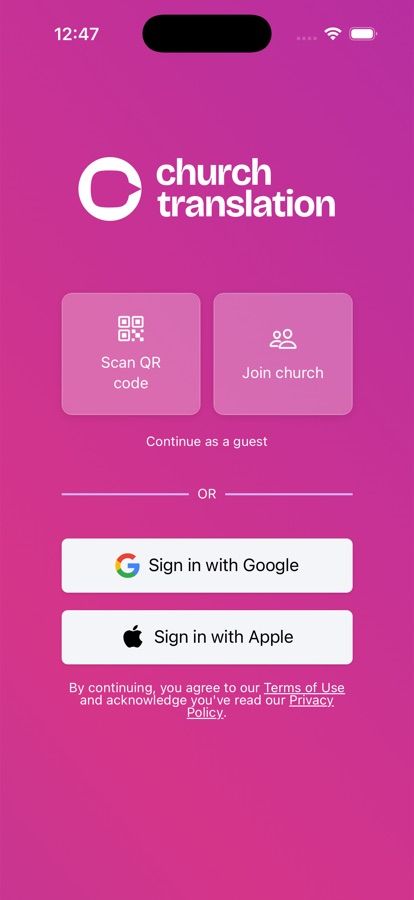
The first screen offers you a few ways in. Any of them will work today.
If you are only visiting once, just scan the QR code or tap Join church. That signs you in as a guest, and you will be reading the service in seconds.
⚠️ If you come regularly, sign in with Google or Apple instead. A guest account lives only on that one device, in that one app. If you clear your browser data, switch phones, or delete and reinstall the app, that guest account and everything in it — your language, your text size, your churches — is gone for good and cannot be recovered. Signing in with Google or Apple keeps all of it. You can also start as a guest today and link an account later from Settings, without losing anything.
Step 3: Connect to your church
Now tell the app which church you are at. On the first screen there are two ways, and your church may use either.
Scan the QR code — the fastest
Many churches print a QR code in the bulletin, or put it on the screen before the service.
Tap Scan QR code.
When your phone asks, allow the app to use your camera. It only uses it for this.
Point your phone at the code.
That is it — you are in.
If you accidentally said no to the camera, the app will show Camera Permission Required. Tap Open Settings, turn the camera on for Church Translation, and try again. Or just use the code method below instead.
Type in your church's code
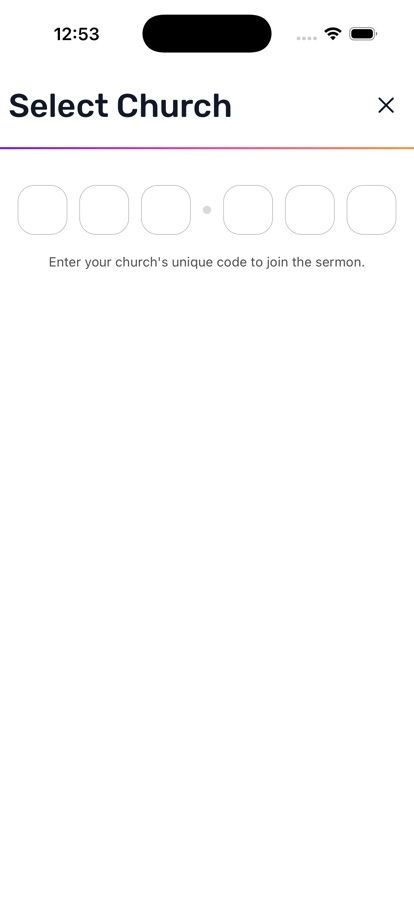
Every church has a short sign-in code: six letters and numbers, shown in two groups of three, like ABC-123. Ask at the welcome desk if you cannot find it.
Tap Join church.
On the screen reading Enter your church's unique code to join the sermon, type the code.
Capital letters do not matter. If you see Invalid code. Please try again., look for a mistyped character — a 0 and an O are easy to confuse.
Searching for your church by name
There is no search on the first screen. As a guest, the Join church screen shows only the code boxes and, underneath, any Previously Joined Churches from this device.
Searching the full list of churches is only available once you have signed in with Google or Apple: open Settings, tap Church, then Change, and type the name into Enter church name. Tap your church when you see it, and you will get one of two messages:
Join — "Join to see translated sermons from [your church]." Tap Join and you are in.
Request to join — "Send a request to [your church] to join the sermon." Tap Request. Someone at the church has to say yes first.
If your request is pending
Your request is pending approval. [Your church] is reviewing your request and will respond shortly.
There is nothing more for you to do. Someone at the media desk or the welcome desk will approve you, usually within a minute or two, and you will see Church request has been approved.
If it is taking a while and the service is starting, go and ask at the welcome desk for the church's code or QR code. Those two never need approval — they let you straight in.
Coming back next Sunday
You will not have to do any of this again. Open the app and it takes you straight to the translation.
If you visit more than one church, tap Church in Settings to switch between them. You will see three groups:
My Churches — churches you have joined
Requested Churches — where you are still waiting for approval
Previously Joined Churches — churches you have been to before, ready to rejoin with one tap
If you signed in as a guest, you will see "Link your account to switch churches". Link Google or Apple in Settings and the list becomes available.
If something is not working
Still stuck? Ask whoever is at the welcome desk — they can see who has joined and can help you from their side.
Was this helpful?
Still need help? Ask the team