
Changelog

Follow new updates and improvements to Church Translation.

Visitors Can Move From the Browser to the App in One Tap

For visitors who follow your service in their phone's browser. The app keeps playing with the screen locked and saves battery, but moving from the browser to the app used to mean installing it and then finding your church and language all over again. Now the browser offers the app, and the app picks up where the visitor left off.

  • One Offer, Right After Joining: When someone joins your church in the browser with your church's code, a short message offers the app. It appears once. Not now closes it for good — it does not come back when they tap Start Listening.
  • Straight Into Your Church: Installed from there, the app opens directly in your church and in the language the visitor chose. No second code, no QR scan. On iPhone the app asks once whether it may paste; tapping Allow Paste is all it takes.
  • Always Within Reach: A Get the app button sits at the bottom of the menu in the browser, for anyone who tapped Not now the first time.

To get started:

Nothing changes in your admin settings. Visitors need the latest version of the app (2.5.1) from the App Store or Google Play — with an older version the app installs, but it won't pick up your church by itself.

One thing to know: the app can only carry your church across when the visitor joined with your church's code. Someone who found your church by searching for it picks it once more in the app, the same way.
NewMobile app

Keep Listening With the Screen Locked

For visitors who listen to the translation through headphones. Until now, the audio stopped the moment a phone's screen locked, so the app kept the screen switched on for the whole sermon, and that drained the battery. With the new app update, visitors can lock their phone and put it in a pocket.

  • Lock the Phone, Keep Listening: On iPhone and Android, the translation keeps playing when the screen locks or goes to sleep. The app no longer keeps the screen on while audio plays, so the battery lasts through the service.
  • Pause From the Lock Screen: The lock screen shows Church Translation · your church's name with a pause button. On Android it sits in the notification. Pausing there turns the audio off in the app too.
  • Locked Phones Still Count as Listening: A visitor listening with the screen locked stays in your Users Online list, and their language stays switched on. A pocketed phone no longer looks like nobody is listening.
  • Audio Switches Itself Off After the Service: If no new translation has played for 30 minutes, the audio turns off by itself, in the app and in the browser. Every new sentence starts the 30 minutes again, so a long sermon or a music break never triggers it.
  • Archive Days Play to the End: Listening to a past service from the archive used to stop after about two minutes. It now plays the whole day. If one sentence fails to load, playback skips to the next one instead of stopping.

To get started:

Visitors need the latest app (version 2.5.1) from the App Store or Google Play. Nothing changes in your admin settings.

One thing that stays the same: in the browser at app.churchtranslation.org, locking the screen still stops the audio. Phone browsers don't let a web page keep playing in the background, so the screen stays on while visitors listen there. If someone at your church wants to listen with the phone in their pocket, point them to the app.

NewMobile app

Choose Between Faster Translations and Fuller Sentences

Speech recognition waits for a pause before it sends a sentence to the phones. Until now that wait was fixed, unless your preacher spoke Swiss German. Now every church decides for itself: a shorter wait means translations reach the congregation sooner, and a longer wait keeps whole sentences together.

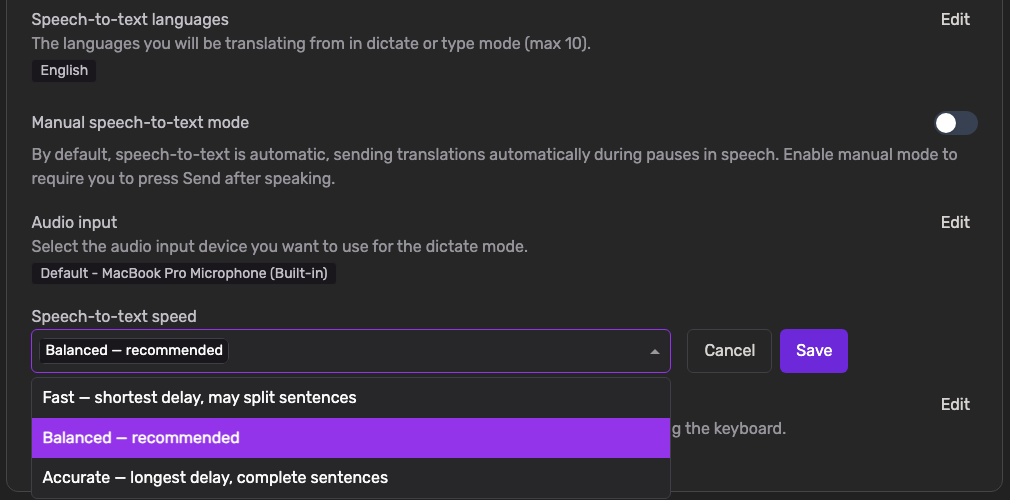
  • Three Clear Choices, Every Language: Pick Fast, Balanced or Accurate under Speech-to-text speed. The setting works the same way whichever language you dictate in.
  • Fast for Quick Back-and-Forth: Translations reach the phones sooner. That suits short sentences, interviews and announcements. The trade-off: a long sentence can be split at a breath, and half a sentence translates less well than a whole one.
  • Accurate for Long, Winding Sentences: Waits longest, so a preacher who pauses mid-thought still arrives as one sentence.
  • Nothing Changed Unless You Change It: Balanced is the default and works exactly as before. You won't notice anything until you pick something else.
  • Swiss German Joins In: The old millisecond setting for Swiss German is replaced by these three choices. If you had tuned it, we moved you to the closest one: up to 600 ms became Fast, up to 1,500 ms Balanced, anything longer Accurate.

To get started:

  1. Go to Settings → Speech-to-text settings.
  2. Find Speech-to-text speed and click Edit.
  3. Choose Fast, Balanced or Accurate and click Save.
Speech-to-text speed in Settings, open with the three options Fast, Balanced and Accurate

One thing worth knowing: a change applies from your next session. A service that is already running keeps the speed it started with, so try a new setting in the week rather than in the middle of a sermon.

NewAdmin

Earlier updates